
The cloud drive
A Windows drive whose contents live only on the server, so you can copy more data than your PC has free space.
The normal METAFILES drive letter is a view of your local synced folder, so everything you copy into it lands on your PC's disk first. If you have 50 GB free and need to copy 80 GB, Windows refuses. The cloud drive solves exactly that: it is a separate drive letter whose contents stream straight to the server and never land on your local disk.
1. Sync folder or cloud drive?
| Drive letter (synced folder) | Cloud drive | |
|---|---|---|
| Where the data is | On your PC, then synced | Only on the server |
| Works offline | Yes | No |
| Free space shown | Your disk's | Your cloud quota |
| Copy more than your free disk | Refused by Windows | Works |
| Needs an extra driver | No | Yes (Dokan, installed for you) |
Use the synced folder for everyday work, and the cloud drive for moving large amounts of data.
The cloud drive is available on Windows only (Windows 10 and 11, and Windows 7 with extra updates).
2. Install
- Download METAFILES-Setup-3.17.4.
.exe ("Installer with the cloud drive") from https://dl.dmsvault.cloud/metafiles/ and check its SHA-256 (see Downloads). - Run it. It installs METAFILES and the Dokan file-system driver in one go.
For IT: install silently with /quiet; uninstall with /uninstall (the Dokan driver stays installed).
If you installed the plain MSI instead, mounting the drive offers to install the driver when the setup for it is available.
3. Use it
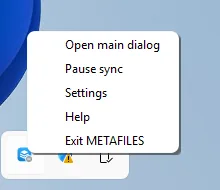 The tray menu, where you mount and unmount the cloud drive.
- Sign in to METAFILES as usual (see METAFILES for Windows).
- Right-click the METAFILES tray icon → Mount as Cloud Drive.
- A new drive appears, named METAFILES Cloud, using the first free letter from Z: downwards. Its size and free space are your cloud quota.
- Copy files onto it with Explorer or any other program. They stream to the server in pieces of at most 16 MiB.
- To stop, choose Unmount Cloud Drive in the tray menu.
The drive uses the account you are already signed in with; you do not sign in again.
4. Good to know
- It makes huge copies possible, not fast. The speed is your internet connection's. At about 1 MB/s, for example, 200 GB takes around 50 hours.
- You need a connection for the whole copy; nothing is kept offline.
- The drive uses your first signed-in account only.
- Memory and local disk use stay low during a copy, whatever its size.
- On Windows 7 the drive needs Windows update KB3140245 and TLS 1.2 switched on. See Windows 7.