
Users and groups
Sign in with your first administrator account, then create users, groups and quotas in the portal within your plan.
Your MSP creates your organisation and hands you the first administrator account. From then on you create and manage your own users in the portal's Accounts page, within the number of seats and the storage your plan allows.
1. Your first sign-in
- Your MSP builds your organisation. Your portal address is
https://<organisation>.dmsvault.cloud, for examplehttps://acme.dmsvault.cloud. - Your MSP gives you the first administrator's user name,
<organisation>-admin(for exampleacme-admin), and its password. If it is lost, your MSP can set a new one; it is shown to them once. - Open your portal address and sign in. If your MSP requires two-factor sign-in for administrators, you are asked to set up a second factor now. See Security and two-factor sign-in.
- Change your password: avatar (top right) → Personal settings → Security → Password.
- Check that Administration settings appears in the avatar menu. If it does not, ask your MSP to add your account to the administrators.
2. The built-in groups
Every organisation starts with three groups:
| Group | Who is in it | What it gives |
|---|---|---|
tenant-admins |
Your organisation's administrators. The first administrator starts here. | Full administrator rights. Every member is added to admin automatically. |
admin |
Every member of tenant-admins, plus the platform's own operator account |
Every Administration page. Managed automatically: anyone you add here directly who is not in tenant-admins is removed again. |
staff |
Ordinary users | Normal use: files, sharing, Office and Talk. |
Tip: To make someone an administrator, add them to
tenant-admins, not toadmin.
The portal also contains an operator account that the platform uses (your MSP can tell you which one it is). Do not delete it, disable it or change its password.
3. Add a user
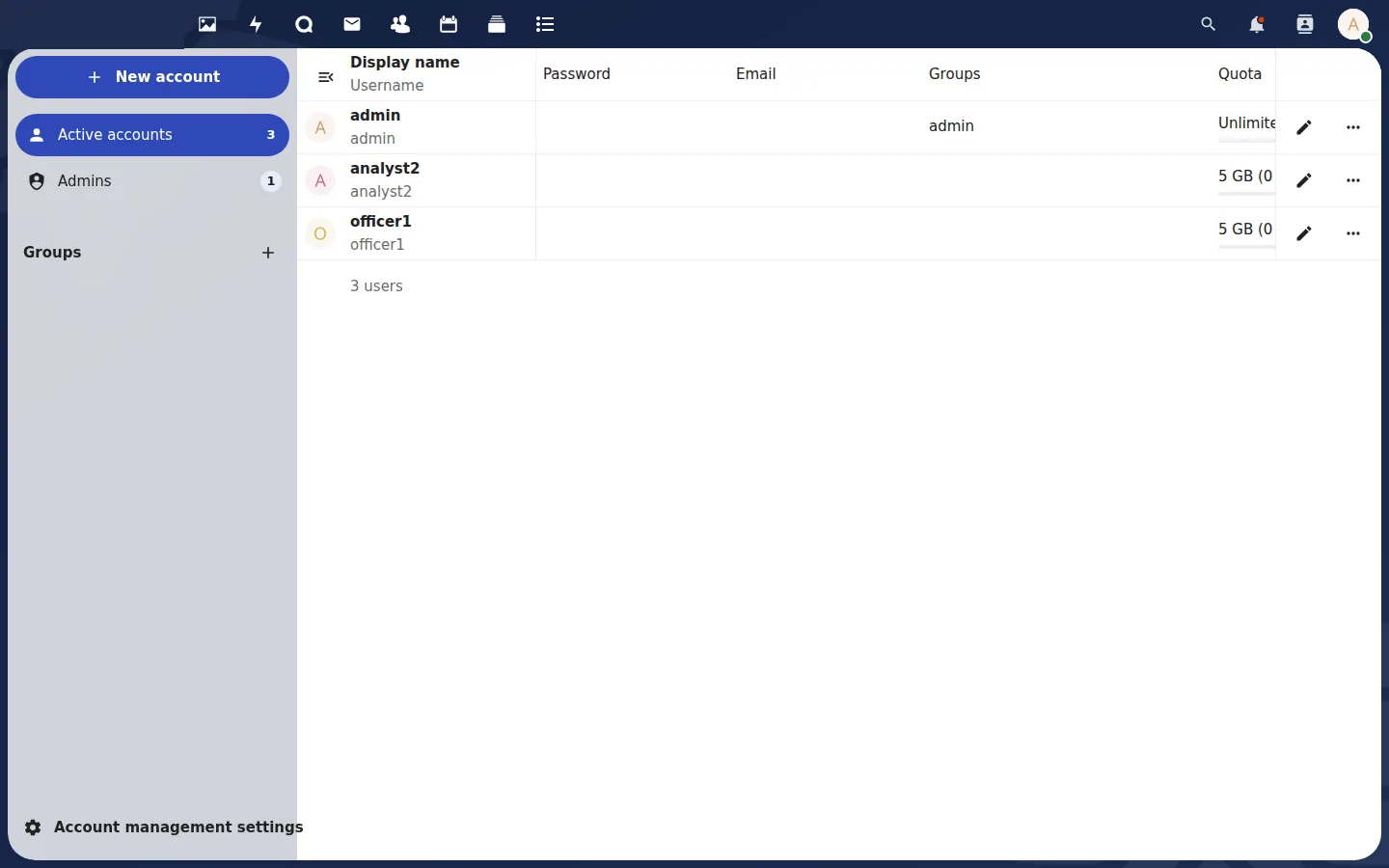 Accounts: every user, their groups and quota.
- Avatar (top right) → Accounts.
- Click New account.
- Fill in the account name (used to sign in), display name and a password, choose the groups (
staff, ortenant-adminsfor an administrator) and a quota. - Click Add new account.
- Give the user the portal address, their user name and password, and point them to the end-user guide.
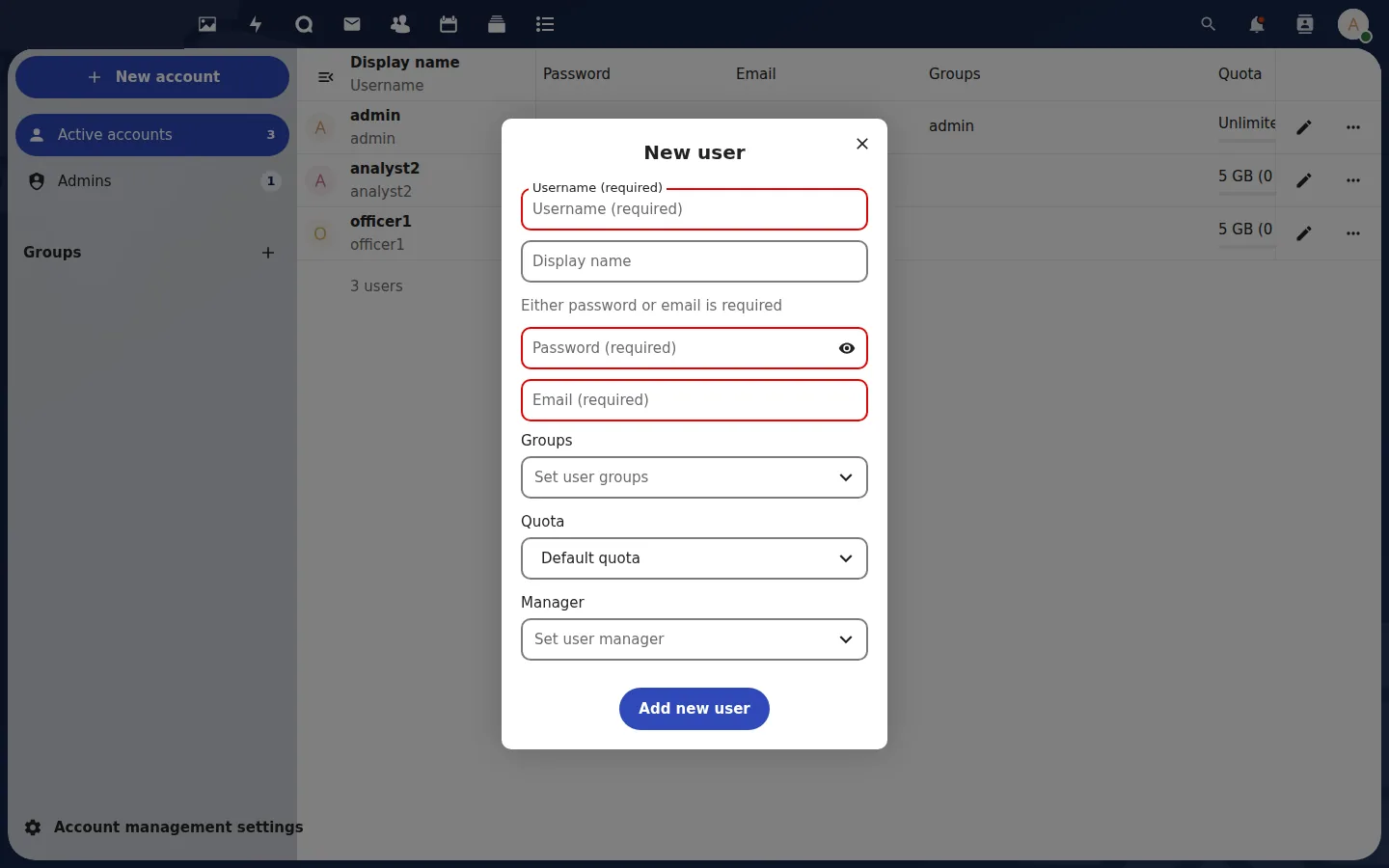
An e-mail with a "set your password" link works only once your MSP has set up outgoing mail for the service. Until then, set a first password and pass it on yourself.
Your MSP can also create users for you from its console.
Seats. Your plan has a number of seats. When all are used, new accounts are refused. Disabled users still use a seat; deleting a user frees one. Ask your MSP if you need more.
4. Quotas
| Quota | Who sets it | Where |
|---|---|---|
| Organisation storage | Your MSP | Your plan. Over the limit, uploads are refused, but reading, deleting and restoring files always work. |
| Per user | You | Accounts → the user's row → Quota column. |
5. Disable or delete a user
| Action | How | What happens |
|---|---|---|
| Disable | Accounts → user row → ⋯ → Disable account | The user cannot sign in. Files and shares stay. The seat stays in use. |
| Enable again | Accounts → user row → ⋯ → Enable account | Also used when an account was disabled after too many wrong passwords. |
| Delete | Accounts → user row → ⋯ → Delete account | Removes the user, their files and their shares. |
Note: While your organisation has WORM protection or a legal hold switched on, deleting users is refused. Disable the user instead. See Retention, versions and files.
6. Groups for teams
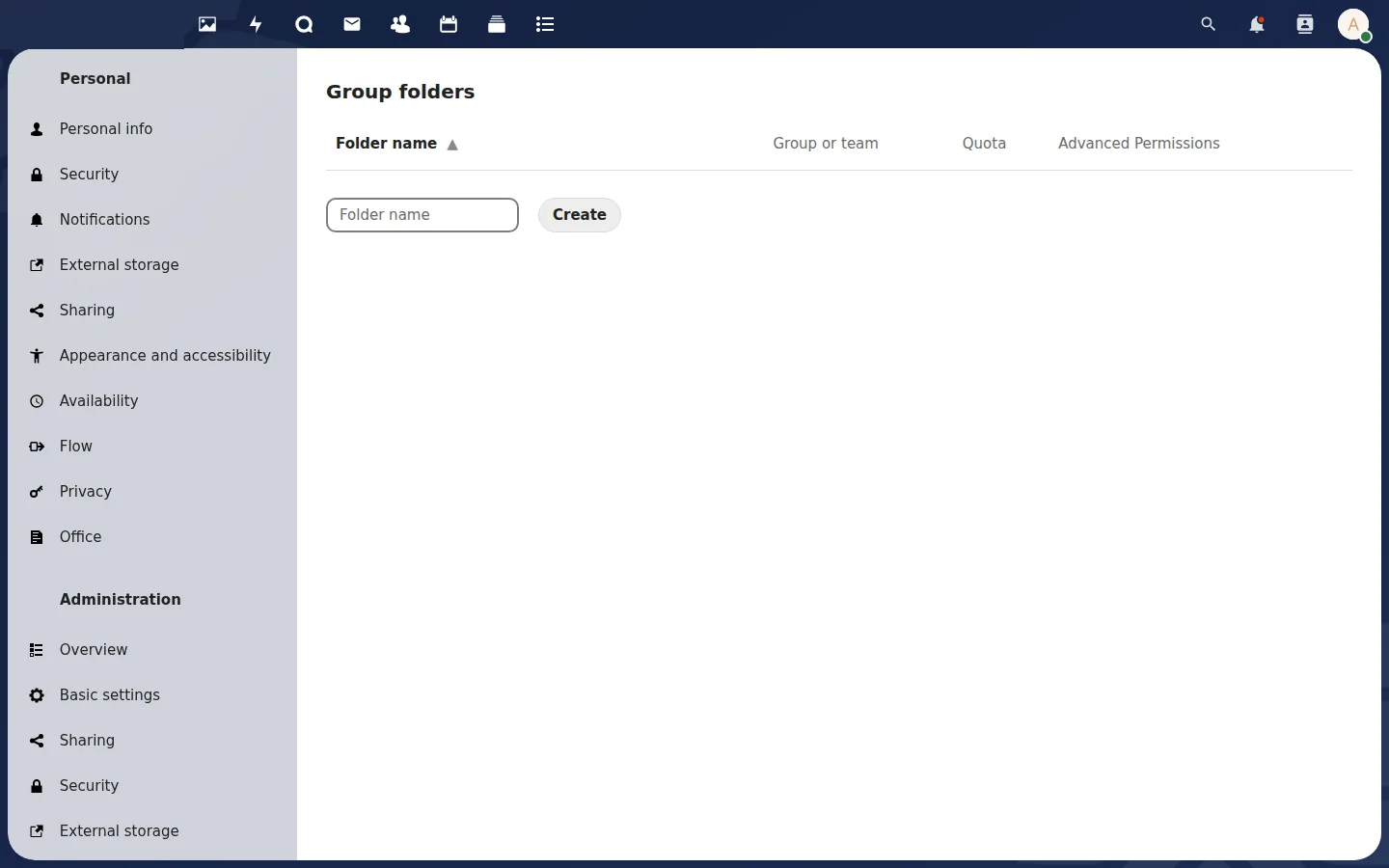 Team folders give a group a shared space, if your MSP has the app switched on.
Create, rename and delete your own groups in Accounts → + New group (left column). Use groups to share with a whole team at once.
Do not rename or delete the built-in groups admin, tenant-admins and staff.
7. Single sign-on and directories
Single sign-on and directory (LDAP) sign-in are not available today. Users sign in with a METAFILES account and password, plus a second factor if required.