
Organisations
Add a customer organisation, choose where its files are stored, follow its 12-step build and find your way around the organisation page.
An organisation is one of your customers. Each one gets its own METAFILES portal, its own users, its own database and cache, its own encryption key and its own storage space. This page covers the list of organisations, adding a new one, the build that follows, and the organisation page.
The Organisations list
Organisations shows one card per organisation: its initials, company name, ID (which is also its portal address), a status badge, and either its plan (seats, quota and users) or, while it is being built, a progress bar with "N/12 steps" and the current step. Click a card to open the organisation page.
| Status | What it means | What to do |
|---|---|---|
| Waiting for the site | The request is recorded and waiting for the site to start it. The site builds one organisation at a time, so a request may also wait behind another build. | Usually nothing. It is picked up within about a minute when the site is idle. |
| Building | The site is running the 12 build steps. Progress is read from the site, not assumed. | Wait. A first build usually takes under half an hour. |
| Build failed | A step failed. The failed step is shown in red with its reason. The site pauses its queue until someone acts. | Read the reason, fix the cause and click Retry. |
| Active | Built and reporting to the console. | Nothing; this is normal. |
| Needs attention | The organisation exists but its portal has not reported to the console yet. | Open it and read the banner. |
| Suspended | Switched off by an operator. Its address shows "This service is suspended"; all files stay intact. | Activate to undo, or delete it. See Suspend and delete. |
| Read-only | Users can view and download, but every change is refused. | Switch it back in the organisation's advanced settings. |
| Deleting | A delete was confirmed. During its undo window it can still be cancelled. | See Suspend and delete. |
Below the cards, Deleted in the last 7 days lists recently deleted organisations, when, and which operator asked. A deleted organisation's ID can never be used again.
Adding an organisation
Click + Add organisation on the Dashboard or the Organisations page.
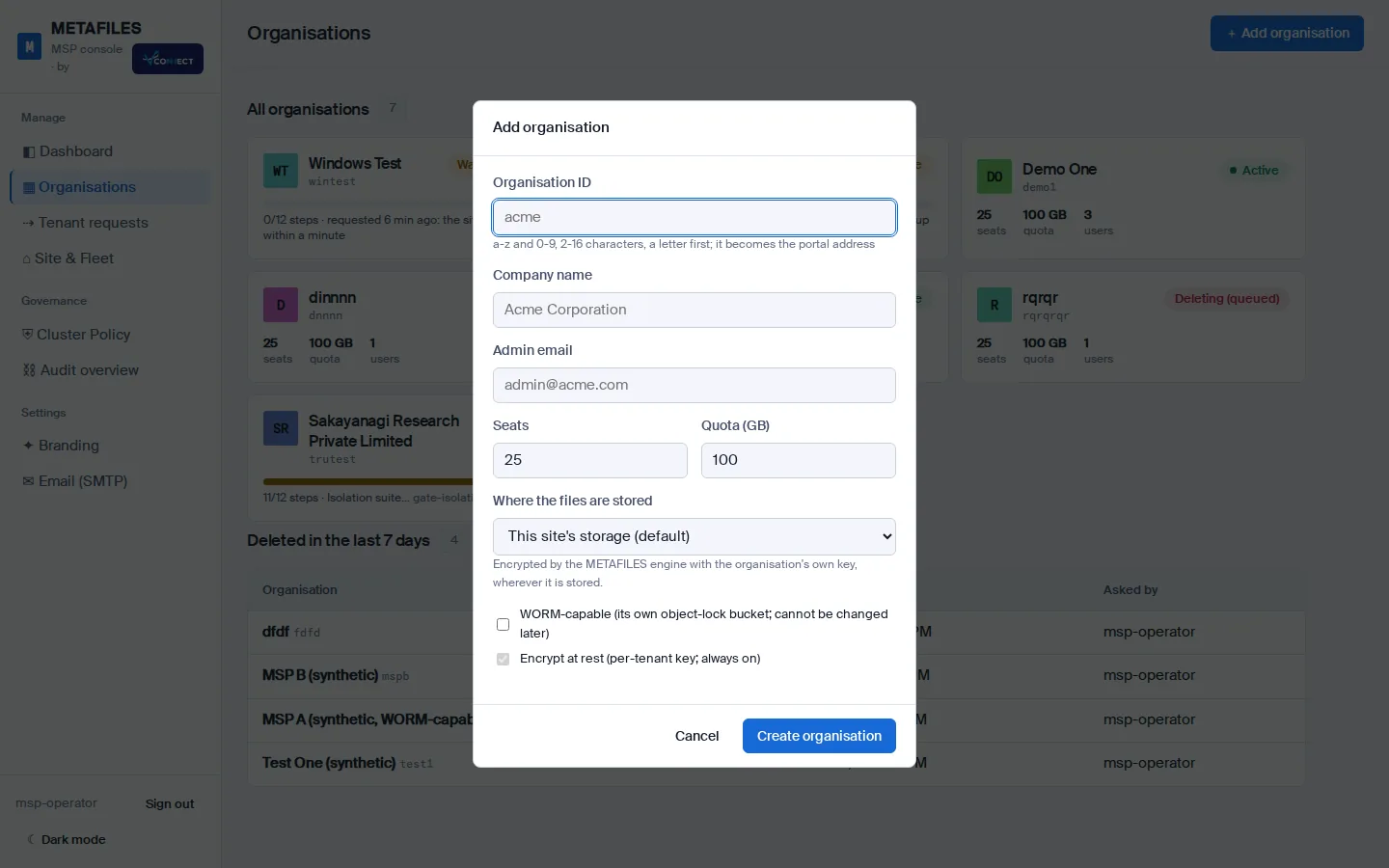
| Field | Rule and notes |
|---|---|
| Organisation ID | 2 to 16 characters, lowercase letters a-z and digits 0-9, starting with a letter. It becomes the portal address https://<id>.dmsvault.cloud, for example https://acme.dmsvault.cloud. IDs already requested and IDs of deleted organisations are refused. Check it carefully: Create builds a real organisation. |
| Company name | Shown on the cards and in the portal's branding. |
| Admin email | The contact address of the customer's first admin. |
| Seats | How many user accounts the organisation may have (default 25). Disabled users count. You can change it later. |
| Quota (GB) | How much it may store (default 100). At the limit uploads stop; reading and deleting always work. |
| Where the files are stored | The organisation's storage target (see below). Default: this site's storage. |
| WORM-capable | Gives the organisation its own locked storage, needed for WORM and legal hold. It cannot be changed later. |
| Encrypt at rest | Always on: every organisation has its own encryption key. |
Create organisation sends the request. Cancel leaves nothing behind.
Choosing where the files are stored
Wherever you choose, the engine still owns the data: it encrypts and compresses every chunk with the organisation's own key, so the store only ever holds encrypted data.
| Option | Use it for |
|---|---|
| This site's storage (default) | The site's own storage cluster, with three copies of everything. No extra fields. |
| Amazon S3 | A new, empty bucket in Amazon S3. You give the region, bucket, access key and secret key, and can choose server-side encryption and Object Lock. |
| S3-compatible service | MinIO, Wasabi, Backblaze B2, Cloudflare R2, Google Cloud Storage (with HMAC keys), Ceph or another S3-compatible service. You give the endpoint, region, bucket and keys, and can add a private certificate authority. |
| Customer's own server | An S3-compatible server at the customer's premises, such as MinIO, Ceph or a NAS with S3. It must stay reachable from the site's app servers. |
Test connection checks the store before you commit: the address is allowed, the bucket holds no engine data yet, and a small test object can be written, read back and deleted by version. If you ticked Object Lock, it also checks the bucket's lock settings. Create runs the same check again and refuses if it fails. The choice is fixed once the organisation is created. Read more in Storage targets.
What happens after Create
Your click is the approval. The organisation appears as Waiting for the site, then Building, and the site builds it end to end without anyone logging in to a server. You can already set its plan, policy, apps and branding while it builds.
The 12-step build checklist
While an organisation builds, its page shows a checklist with an overall progress bar, the current step and the elapsed time, and a tick, spinner or red cross for each step.
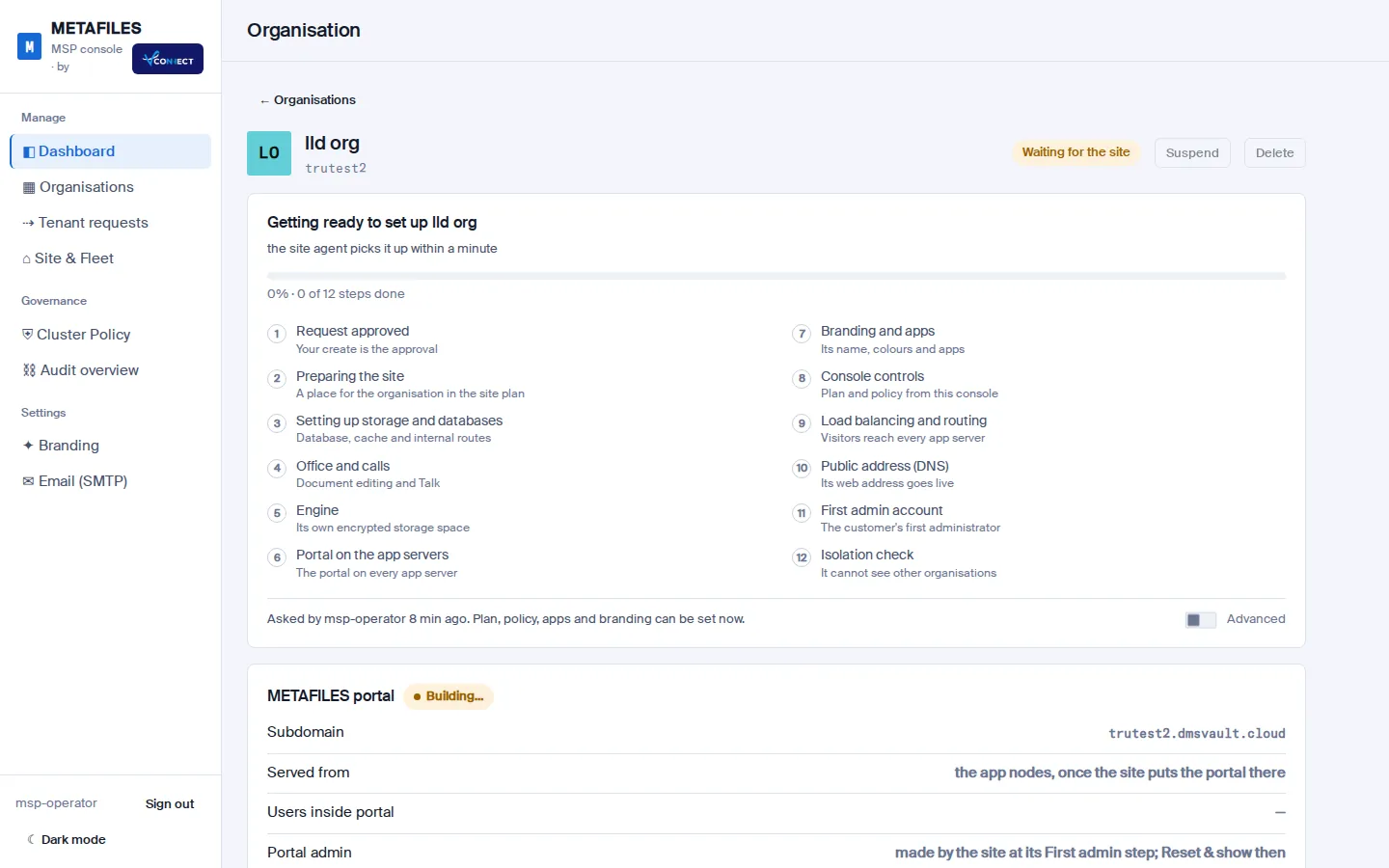
| # | Step | What the site does |
|---|---|---|
| 1 | Request approved | Your create is the approval, and it is recorded. |
| 2 | Preparing the site | Gives the organisation its place in the site plan. |
| 3 | Setting up storage and databases | Creates its own database, its own cache space and its internal routes. |
| 4 | Office and calls | Registers it with document editing and Talk. |
| 5 | Engine | Creates its own encrypted storage space in the engine, with its own key. |
| 6 | Portal on the app servers | Starts its portal on every app server. |
| 7 | Branding and apps | Applies its name, colours and apps. |
| 8 | Console controls | Connects it to the plan and policy you set in this console. |
| 9 | Load balancing and routing | Lets visitors reach it on every app server. |
| 10 | Public address (DNS) | Makes https://<id>.dmsvault.cloud live. |
| 11 | First admin account | Creates the customer's first administrator, <id>-admin. |
| 12 | Isolation check | Proves it cannot see other organisations. See Tenant isolation. |
Every step is first previewed, then applied, then run again to confirm it changes nothing further. Steps that do not depend on each other run side by side.
When the build finishes, get the first admin's password with Reset & show password on the portal card (see Users and access) and hand it to your customer privately.
When a build fails
If a step fails, its line turns red with the reason and the card says Build failed. The site then pauses its queue: no other build or delete runs until someone acts. Fix the cause and click Retry. Retry continues after the steps that already finished, so it does not start from scratch.
Tenant requests in the side navigation lists every request, who asked for it and when, and the state of every step.
The organisation page
Click an organisation to open its page: one long page with everything about it.
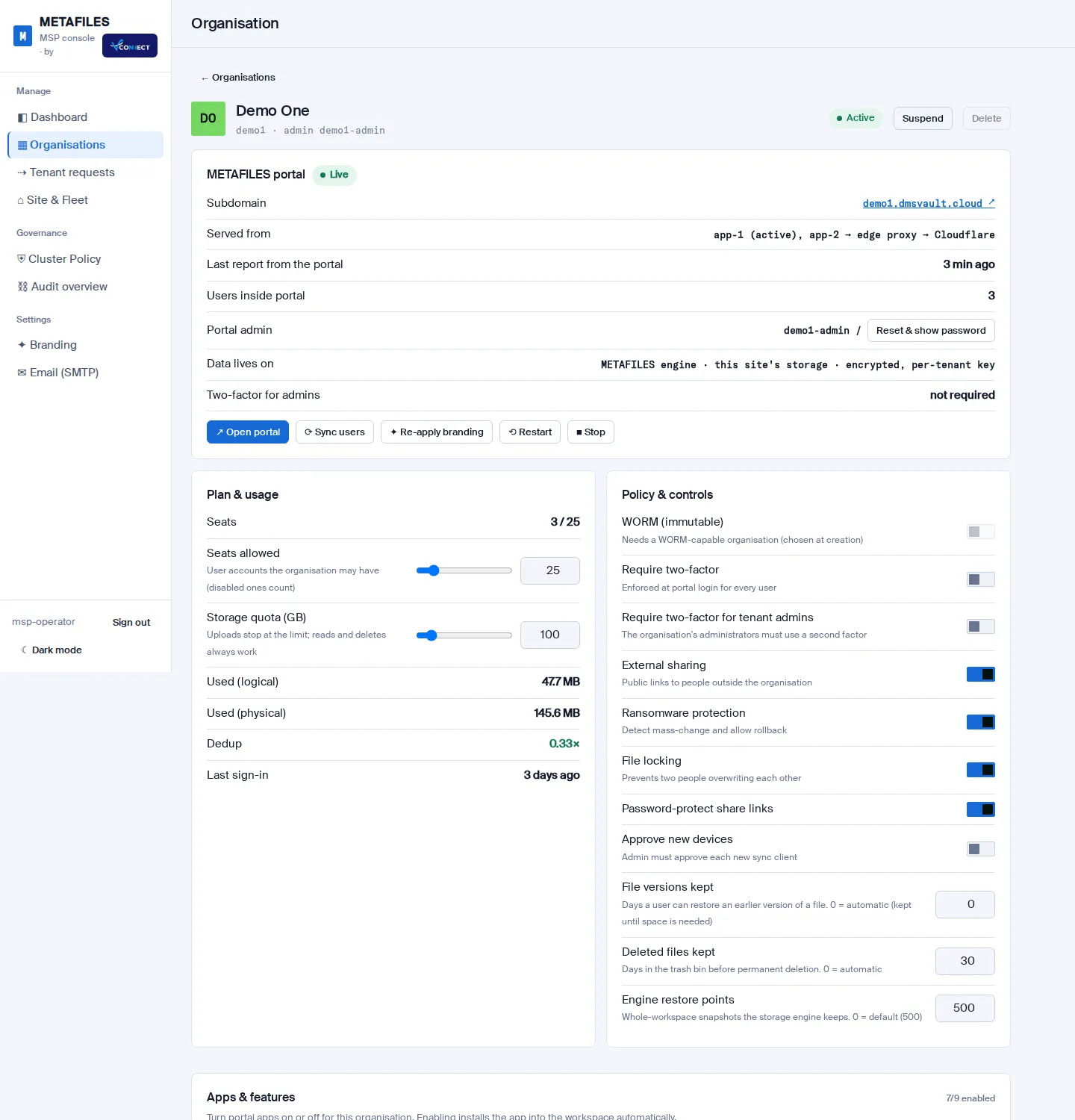
| Block | What it shows and does |
|---|---|
| Header | Company name, ID, first admin, status, and the Suspend / Activate and Delete buttons |
| Build checklist | While building, after a failure, and for 30 minutes after it finishes |
| METAFILES portal | Whether the portal is live, its address, when it last reported, how many users it has, the portal admin with Reset & show password, where its data lives and how it is encrypted |
| Plan & usage | Seats, quota, logical and physical data, deduplication ratio, last sign-in |
| Policy & controls | WORM, two-factor, sharing, ransomware protection, file locking, device approval, retention |
| Apps & features | Office, Talk, Calendar, Contacts, Mail, boards, forms, team folders, connected storage |
| Branding | The organisation's white-label name, colours and images |
| Off-site backup | Backup destination, schedule, runs, Back up now and Restore |
| Requests from the organisation's admins | Requests the customer's admins made from their portal |
| Devices | Desktop and mobile clients, with Approve and Deny when approval is on |
| Audit trail | Every action for this organisation, with filter, verify and export |
| Users | The user list, Add user, Reset & show, roles, disable and delete |
| Advanced | Every MSP control in detail, in 12 tabs, including pending changes |
The portal card has these buttons:
| Button | What it does |
|---|---|
| Open portal | Opens the organisation's portal sign-in page. |
| Sync users | Shows when the portal last reported its users. Users are synced automatically anyway. |
| Re-apply branding | Puts your branding back over any theming changes the customer's admin made. |
| Restart | A rolling restart: one app server at a time, the next only once the previous one is back. |
| Stop / Start | Stops or starts the organisation's portal on every app server. |
The settings on this page are explained in Branding and policy, Users and access and Data protection.