
Security and two-factor sign-in
Two-factor sign-in, app passwords for desktop and mobile apps, revoking devices, and the password rules your MSP sets.
A password alone is not enough protection for company files. METAFILES supports two-factor sign-in with an authenticator app, and its desktop and mobile apps sign in through the browser, so the second factor works there too. This page explains what your MSP decides, what each user does, and how to clean up a lost device.
1. What your MSP decides
Your MSP has two switches for your organisation:
| Switch | Effect |
|---|---|
| Require two-factor sign-in | Every user must have a second factor. Users without one are taken to the set-up page at their next sign-in. |
| Require two-factor sign-in for administrators | Members of tenant-admins must have a second factor. |
The enforcement page in Administration settings → Security shows the current state, but changes there do not stick: ask your MSP.
Tip: Administrators can change everything in your portal. Even if it is not required, set up two-factor sign-in for every administrator, and ask your MSP to require it before you store real company data.
2. Set up two-factor sign-in (every user)
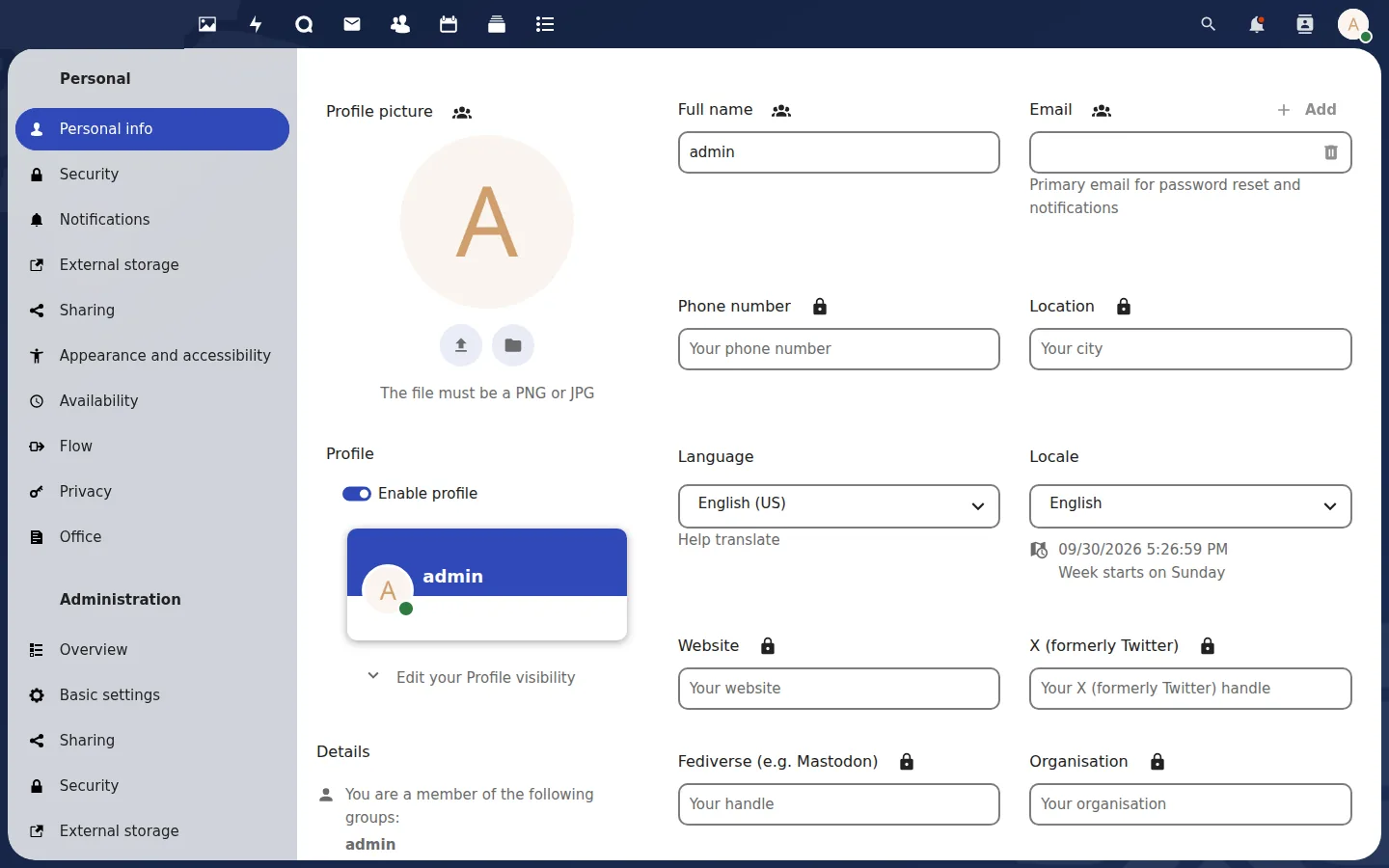
- Avatar (top right) → Personal settings → Security.
- Under Two-Factor Authentication, tick Enable TOTP.
- Scan the QR code with an authenticator app on your phone, type the 6-digit code, and click Verify.
- Click Generate backup codes and keep them somewhere safe, not in METAFILES. Each code lets you sign in once if you lose your phone.
Available methods:
| Method | Available |
|---|---|
| Authenticator app (TOTP) | Yes, when two-factor sign-in is required |
| Backup codes | Always |
| Security keys | Only if your MSP allows them; ask your MSP |
3. Desktop and mobile apps: app passwords
- The METAFILES apps for Windows, macOS, Linux and Android sign in through the browser: the app opens a sign-in page, the user signs in (with the second factor) and clicks Grant access. The app then receives its own app password for that device. Nothing else to do.
- For things that cannot open a browser (scripts, the command-line sync tool, a WebDAV connection), create an app password by hand: Personal settings → Security → Devices & sessions → type an app name → Create new app password. Copy it straight away; it is not shown again.
- Your MSP can require app passwords for all such connections. Then the normal account password is refused there, and an app that used it must sign in again.
4. Revoke a lost or old device
Personal settings → Security → Devices & sessions lists every browser and app signed in to the account. Use the ⋯ menu to revoke one.
Note: In the current desktop apps, "Remove account" in the app does not revoke its app password on the server. After a user removes their account from a computer, or leaves the company, revoke that device here as well.
5. Password rules and lockout
| Control | Who | What it does |
|---|---|---|
| Password policy (length, character types, history, expiry, maximum failed attempts) | Your MSP | After too many failed attempts the account is disabled. Re-enable it in Accounts → ⋯ → Enable account. |
| Brute-force protection | Always on | Repeated wrong passwords from one network address slow sign-in for that address (to about 25 seconds per attempt). It clears by itself after a while; your MSP can also reset it. |
| Session lifetime and "remember me" | Your MSP | How long a browser stays signed in. |
6. Other protections your MSP may switch on
| Protection | What your users see |
|---|---|
| Device approval | A newly connected sync app waits until your MSP approves it. |
| Ransomware protection | If a sudden mass change to files is detected, writes are held until your MSP releases them. |
| Suspension | Nobody in your organisation can sign in, and the portal shows a "suspended" page. |
All data is encrypted at rest; this cannot be switched off. For the full picture of how the service is protected, see Security.