
Customer admin guide
How your organisation's own administrator runs the METAFILES portal - users, security, sharing, branding, retention, Office and Talk.
Every organisation on METAFILES gets its own private portal at https://<organisation>.dmsvault.cloud (for example https://acme.dmsvault.cloud). This guide is for the person in your organisation who looks after it: usually your IT administrator. If you just want to use METAFILES, read the end-user guide instead.
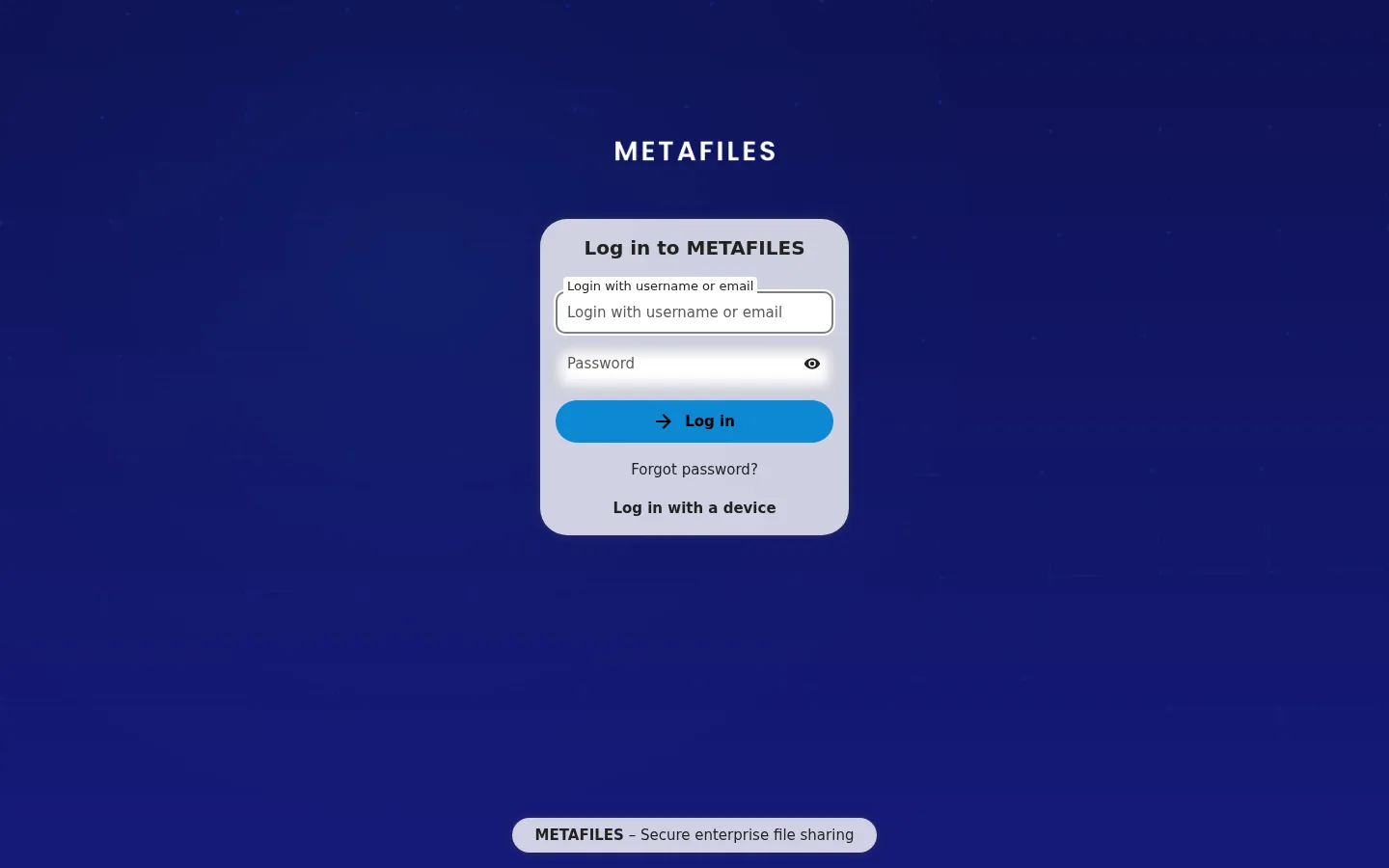 Your organisation's portal: your own address, with METAFILES or your own brand on it.
What you can do as an administrator
Your administrators are full administrators of the portal. You see every page under Administration settings and can manage your organisation day to day without waiting for anyone.
There is one other party involved: your MSP, the service provider that runs METAFILES for you. Your MSP sets the plan (seats and storage), switches features on or off, and can override or lock any setting. Most of the time you will not notice; when a setting "springs back", that is your MSP's lock, not a fault. Read What your MSP controls first.
The pages in this guide
| Page | What it covers |
|---|---|
| What your MSP controls | The two-way rule between you and your MSP, locks, and the settings that are never per organisation. |
| Users and groups | Your first sign-in, the admin groups, adding users, quotas, disabling and deleting accounts. |
| Security and two-factor sign-in | Two-factor sign-in, app passwords for desktop and mobile apps, devices, password rules. |
| Sharing | Internal shares, public links with password and expiry, what is off by default. |
| Branding | Your name, logo, colours and legal links on the portal. |
| Retention, versions and files | How long versions and deleted files are kept, WORM and legal hold, file locking, quotas, upload sizes. |
| Office and Talk | Editing documents in the browser, chat and calls, and what not to change. |
Quick start for a new organisation
- Get your portal address and the first administrator account from your MSP.
- Sign in and change the password. See Users and groups.
- Set up two-factor sign-in for yourself. See Security and two-factor sign-in.
- Put your brand on the portal, if you want to. See Branding.
- Create your users and groups.
- Send your users the portal address and the download page,
https://dl.dmsvault.cloud/metafiles/. See Downloads.
New to the terms used here? See the glossary.
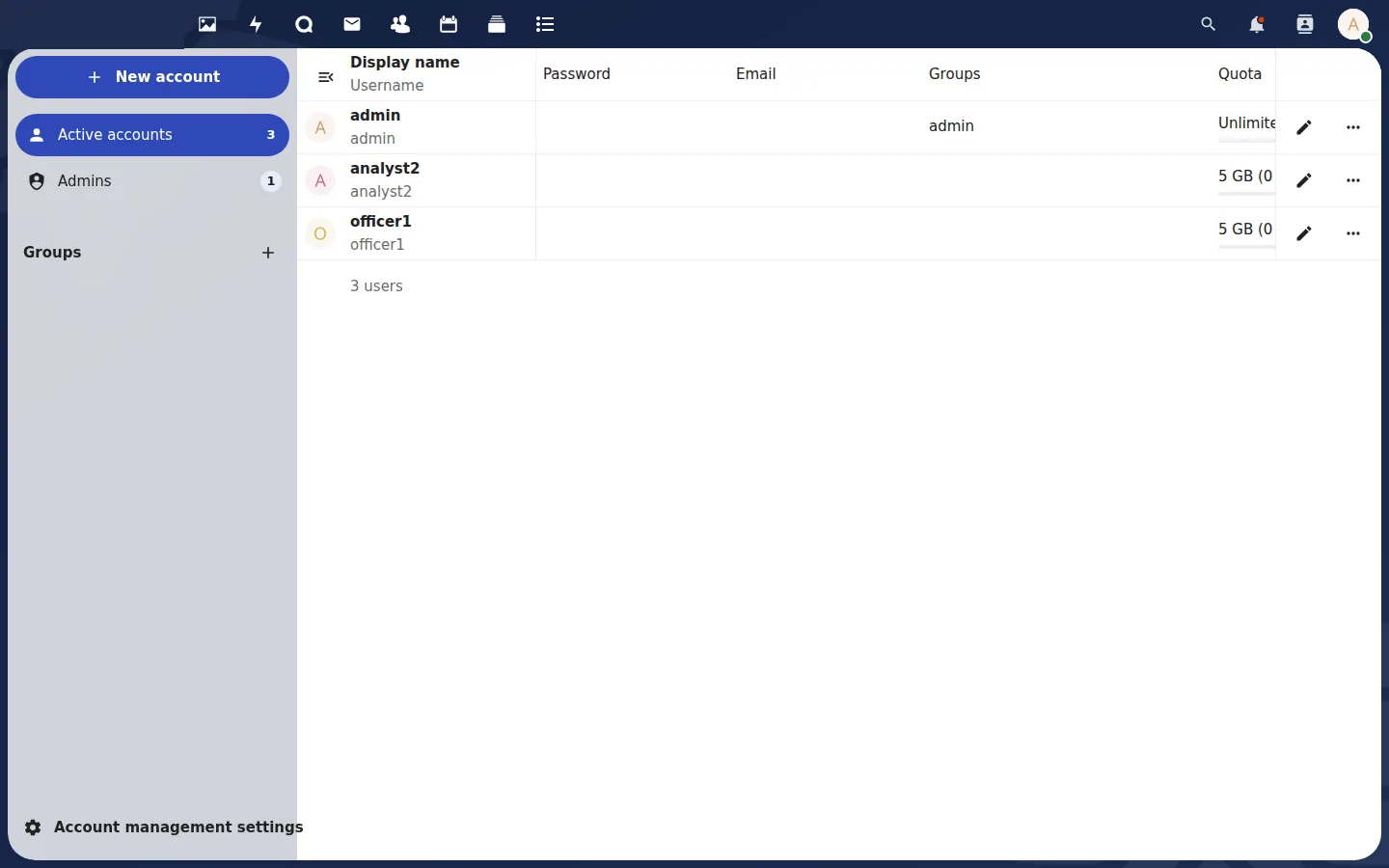 Users and groupsSign in with your first administrator account, then create users, groups and quotas in the portal within your plan.
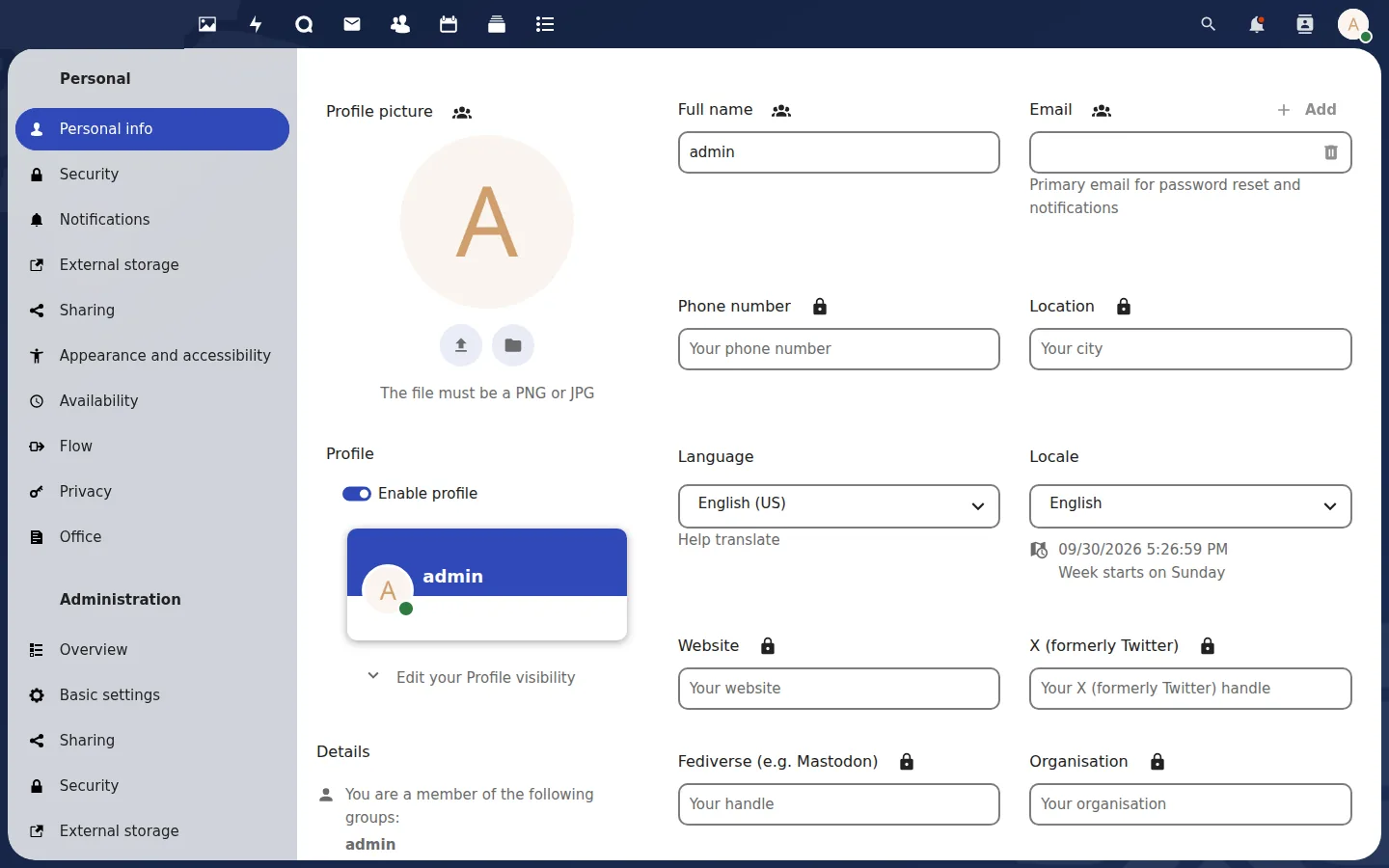 Security and two-factor sign-inTwo-factor sign-in, app passwords for desktop and mobile apps, revoking devices, and the password rules your MSP sets.
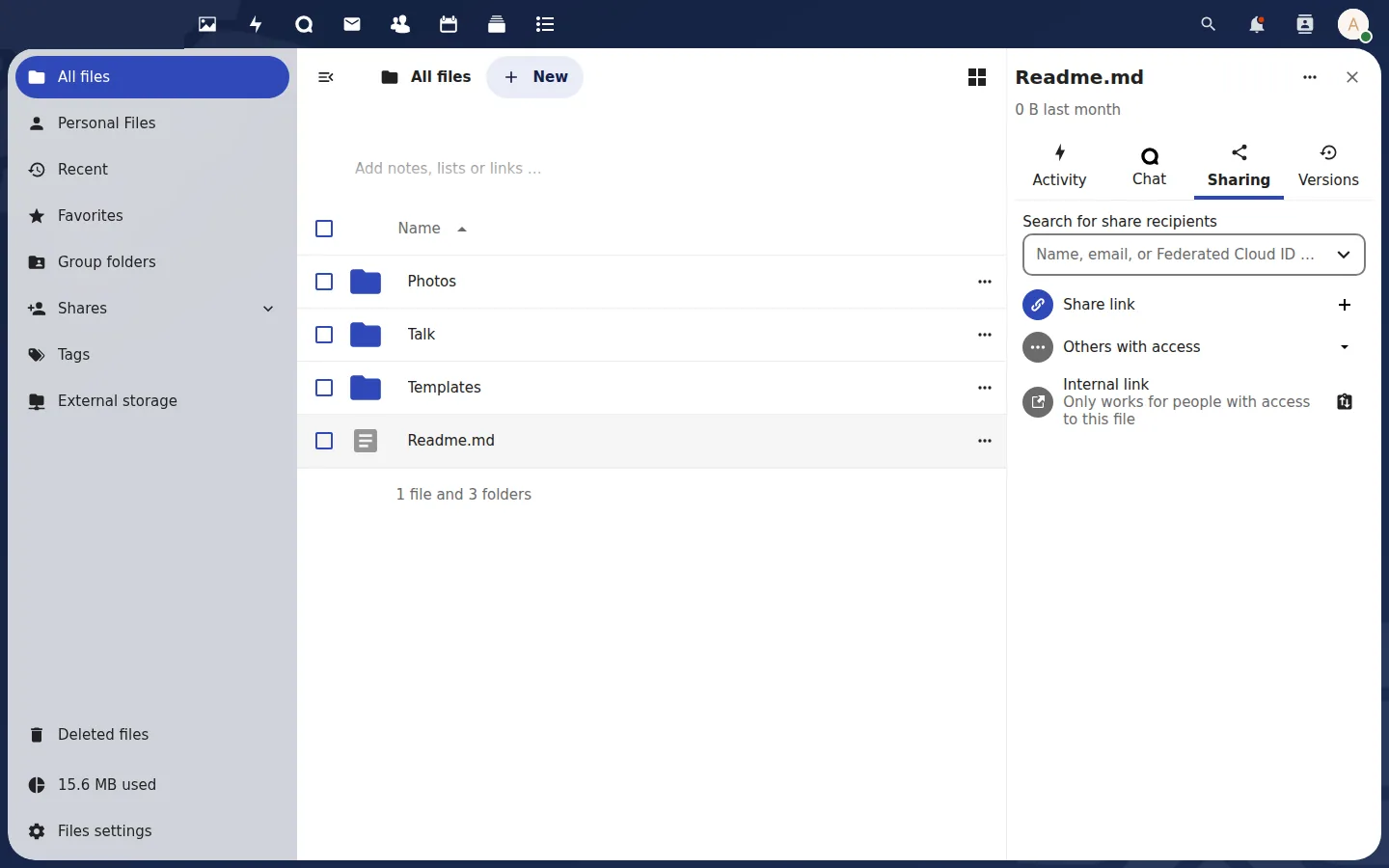 SharingShare with colleagues and through password-protected, expiring public links; sharing with other servers is off by default.Branding your portalPut your own name, logo, colours and legal links on your METAFILES portal in Administration settings, Theming.
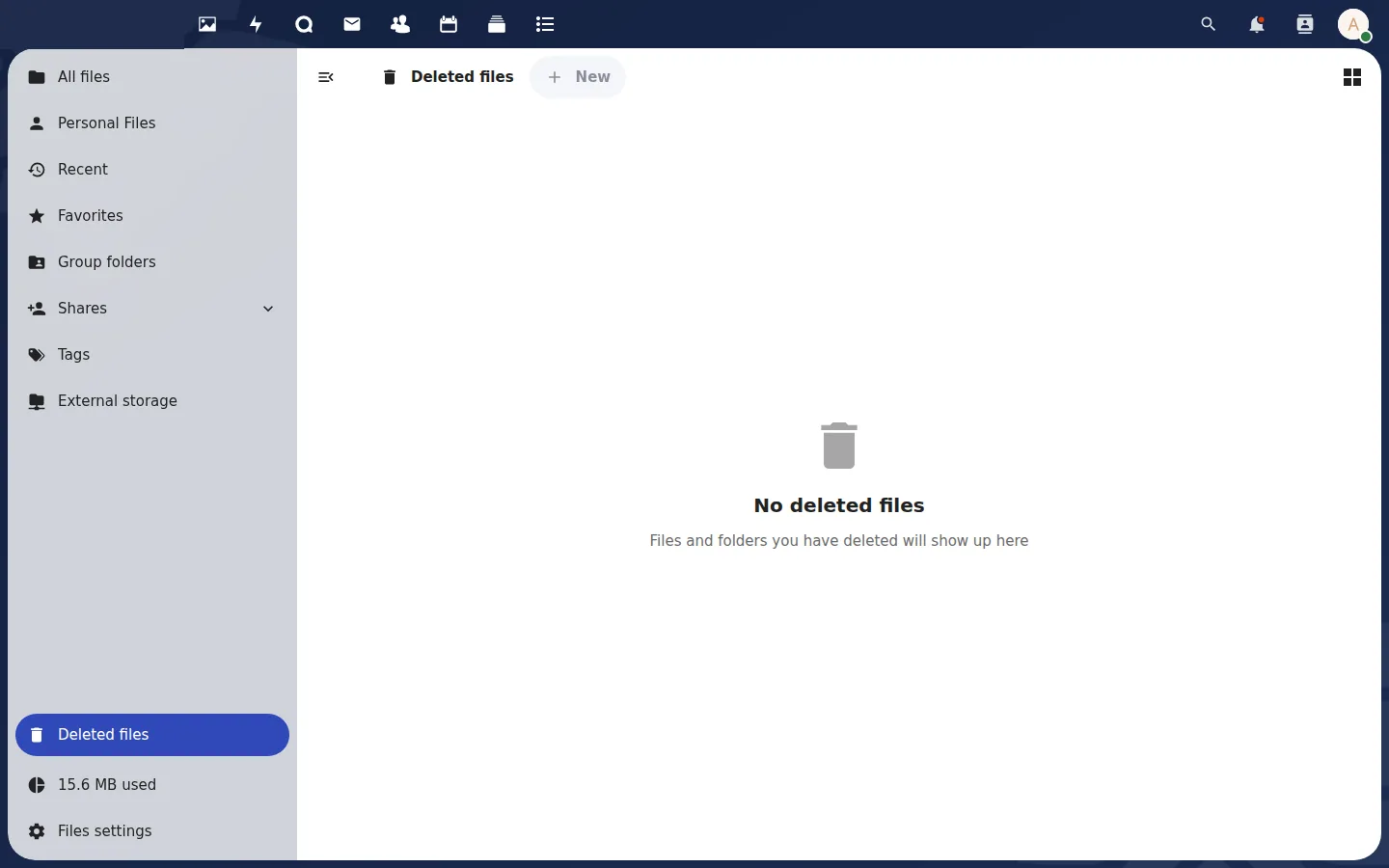 Retention, versions and filesChoose how long old versions and deleted files are kept, understand WORM and legal hold, and know your quota and upload limits.
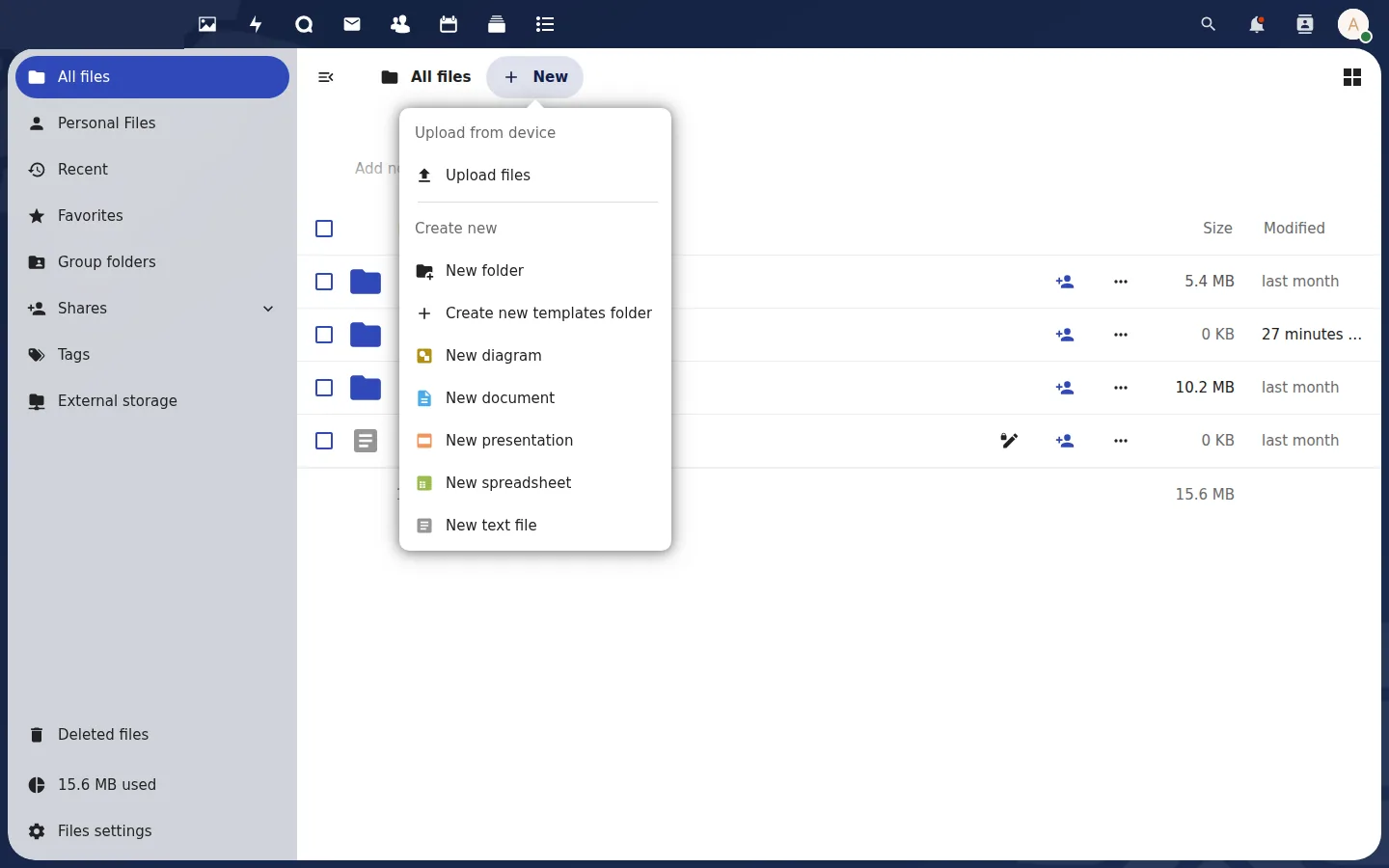 Office and TalkEdit documents together in the browser and hold chats and calls with Talk; both are shared services your MSP switches on.