
Data protection
Backups and restore, ransomware protection, device approval, WORM, legal hold and retention for each organisation, and how to handle requests from customer admins.
Each organisation page has the tools to protect its data: a backup block, a ransomware protection switch, device approval, WORM and legal hold, and retention settings. This page explains each one, including what it does not protect against.
Backups and restore
The Off-site backup block on the organisation page shows:
| Element | Meaning |
|---|---|
| Destination | Where the backup copy goes, chosen from the destinations your site allows. |
| Schedule | Daily by default. |
| Runs recorded, last run, next run | With "verified" once a copy has been checked. |
| Change destination | Pick another allowed destination; it is checked when you save. |
| Back up now | Runs a backup straight away. |
| Restore | Restores from a recovery point. |
| Runs table | When, scheduled or manual, objects copied, bytes, verified. |
How it works. A backup copies the organisation's entire store, with every version and the deduplication intact, to a second, independent store. Runs are incremental and verified. The backup store keeps versions, and the engine is not allowed to delete anything from it.
What it protects against: a software fault, a mistaken clean-up, an organisation deleted by accident, a wrong restore, or a stolen engine key.
What to keep in mind: by default the backup store lives on the site's own storage cluster. That protects against all of the above, but not against the loss of the whole storage cluster. A copy outside the site depends on the destinations your site offers.
Restoring copies missing data back and keeps the state it replaced, so a restore can itself be undone. The portal's own file list is not rolled back, so files added after the restore point may show as unavailable in the portal. A restore point that has already been cleaned up cannot be restored from the console.
Note: If an organisation keeps its files in its own store (Amazon S3, another S3 service or its own server), its backups are still copied to the site's backup store. Tell your customer.
Ransomware protection
The Ransomware protection switch, under Policy & controls, turns on a mass-change trip in the engine's S3 gateway. Every file the portal stores passes through that gateway, so it sees changes from the web, desktop and mobile clients alike. When one organisation suddenly changes or deletes files at an unusual rate, the gateway trips: the changes are held in quarantine and you Release them from the console, with a rollback point offered.
Turning protection off loosens security, so it waits for the undo window.
Device approval
When Approve new devices is on, each new desktop or mobile client stays pending until an admin approves it, and the portal refuses it until then. The Devices block lists user, device, last seen and state, with Approve and Deny.
With approval off, clients work without approval. A denied device is always refused.
WORM and legal hold
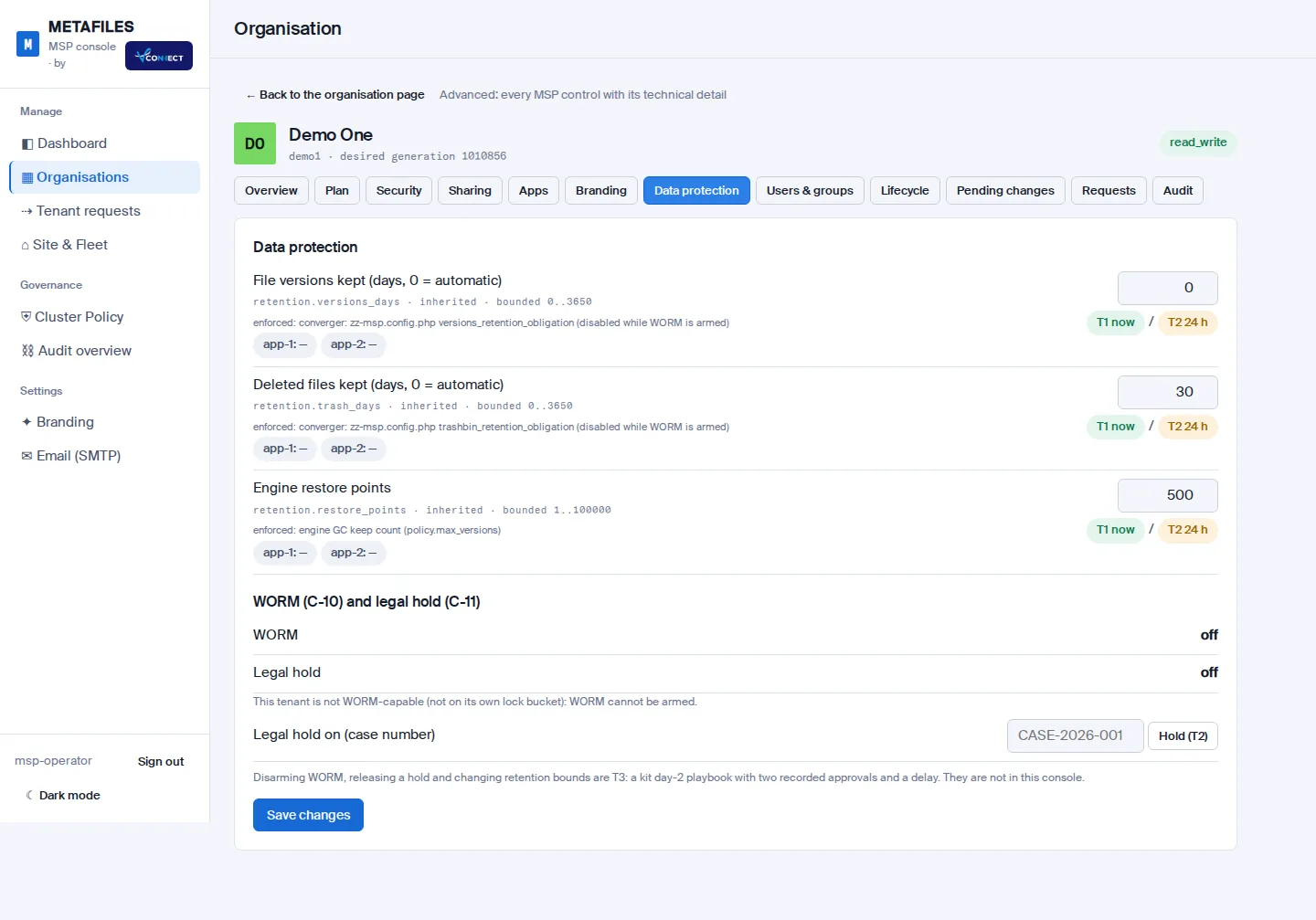
WORM (write once, read many) makes retained files impossible to change or delete.
- Only organisations created as WORM-capable can use it. They get their own locked storage at creation, and that choice cannot be changed later.
- While WORM is armed, the engine refuses to delete or overwrite retained data, version and trash clean-up pause, and deleting users is refused.
- Arming WORM is a console action that waits for the undo window. Turning it off is a separate, approved step, not a console click.
- For an organisation on its own S3 store, WORM needs Object Lock on that bucket; the connection test checks it. Google Cloud Storage has no Object Lock, so a WORM-capable organisation cannot use it.
Legal hold stops data from being deleted, for example during an investigation. While a hold is on, clean-up and deletion are refused. Turning a hold on waits for the undo window.
An organisation that holds retained or legally held data cannot be deleted.
Retention
| Setting | Meaning |
|---|---|
| File versions kept (days) | How long versions are kept. 0 means automatic: kept until space is needed. |
| Deleted files kept (days) | How long deleted files stay in the trash. Default 30. |
| Engine restore points | How many whole-workspace snapshots the engine keeps. 0 means the default of 500. |
Customer admins can adjust retention within the limits you set. A change that keeps less history waits for the longer undo window. See Retention and files for the customer's view.
Requests from the organisation's admins
Customer admins can ask you for changes from their portal, for example a retention or protection change, a rollback or an export. Their requests appear on the organisation page with the request, details, who asked and when. Mark a request done after you carry it out; that is recorded in the audit trail with your name.